How-To
How to Connect an oraimo Smart Watch to Your Phone
Step-by-step: connect your oraimo watch to Android or iPhone with the oraimo Health app, set up notifications and Bluetooth calling, and fix common pairing problems.
oraimo.ae editorial team8 min read
To connect an oraimo smart watch to your phone, install the free oraimo Health app from Google Play or the Apple App Store, charge and switch on the watch, choose the watch language, then start pairing from inside the app rather than from your phone's Bluetooth menu. Keep the phone close, accept the permission and pairing requests, and, if your watch supports calls, approve the second Bluetooth connection used for calling. The whole process usually takes a few minutes.
This guide covers which app each oraimo watch uses, the exact order of steps, how to set up notifications and Bluetooth calling, and what to do when the watch will not connect. It is based on oraimo's own product FAQs and app listing; menu names can change slightly between app versions, so follow the prompts on your screen if they differ.
Which app do oraimo smart watches use?
| Watch | Companion app | Notes |
|---|---|---|
| Current Bluetooth watches: Watch Nova 2 series, Watch GT, Muse series, Watch 6 series, Watch Lumos N, Smart Watch OSW-816N | oraimo Health | Listed in each model's specs; on Google Play and the App Store |
| Watch 5 | oraimo Health | Named on oraimo's own Watch 5 product page |
| Watch Link | Runs its own Android system | Standalone 4G with a nano SIM, apps such as WhatsApp run on the watch; follow the in-box guide |
| Watch Kids (coming soon) | oraimo kids (as listed in our catalogue) | A separate app for the kids' 4G watch; confirm with the quick-start guide when it launches |
| Older or discontinued models | Usually oraimo Health | Scan the QR code on the watch or manual to get the right app |
If you have not chosen a watch yet, our oraimo smart watch guide compares every model.
Before you start: a 60-second checklist
- Charge the watch. Attach the magnetic charger to the back of the watch until the charging icon appears on screen. A low battery is the most common reason pairing or updates fail.
- Update your phone. On iPhone, the oraimo Health app requires iOS 14.0 or later.
- Turn on Bluetooth on your phone. You do not need to pair anything in the Bluetooth menu yet.
- Make sure the watch is not connected to another phone. If it was a gift or used before, reset it first (see the troubleshooting section).
- Keep the watch and phone within arm's reach during setup.
Step by step: connect an oraimo watch to an Android phone
- Switch on the watch. Press and hold the side button until the screen lights up.
- Choose the language on the watch. oraimo's FAQ says to select the language before pairing if the watch is new or has been reset.
- Install oraimo Health. Search "oraimo Health" in Google Play, or scan the QR code shown on the watch or printed in the quick-start guide.
- Open the app and follow the set-up prompts. When the app asks for permissions, allow Bluetooth (shown as "nearby devices" on newer Android versions) and notifications. Location is used for recording routes with GPS, so allow it if you want workout maps.
- Pair from inside the app. Add your device in the app, or scan the QR code on the watch if your model shows one, then select your watch from the list. Confirm the pairing request on the phone and, if prompted, on the watch.
- Approve the calling connection. On watches with Bluetooth calling, some phones show a second pairing request or a second Bluetooth entry for calls. oraimo's manuals explain that some phone models need two connections with the same watch name: one for health data sync and one for calling. Accept both.
- Let the first sync finish before closing the app. The watch should now show the correct time and date from your phone.
Step by step: connect an oraimo watch to an iPhone
The process is the same, with two differences:
- Download oraimo Health from the App Store (or scan the QR code on the watch), then open it and allow Bluetooth and notification access when iOS asks.
- Add your watch inside the app and accept the Bluetooth pairing requests iOS shows. For calling, accept the additional pairing request if one appears.
On iPhone, avoid force-closing the app from the app switcher after setup, as the app needs to run in the background to keep syncing.
How do you set up notifications and Bluetooth calling?
oraimo's product FAQs describe these settings inside the oraimo Health app:
- Message notifications: turn on phone message sync from your watch's device card in the app (oraimo calls this "Synchronous Phone Notification"). The watch vibrates when a message arrives, and you can read it later in the watch's message centre.
- Incoming calls: enable "synchronize phone call" in the app so the watch shows the caller's name or number. To silence a call, press the side button to stop the vibration, then decline it on screen.
- Calling from the watch: enable the Bluetooth calling function in the app. You can then call saved contacts from the watch's call menu.
- Music controls on Android: enable music control in the app and grant notification access, then keep both the app and your music player running in the background.
- Do Not Disturb: while it is on, oraimo notes that incoming calls and messages will no longer alert you on the watch, so check it if notifications suddenly stop.
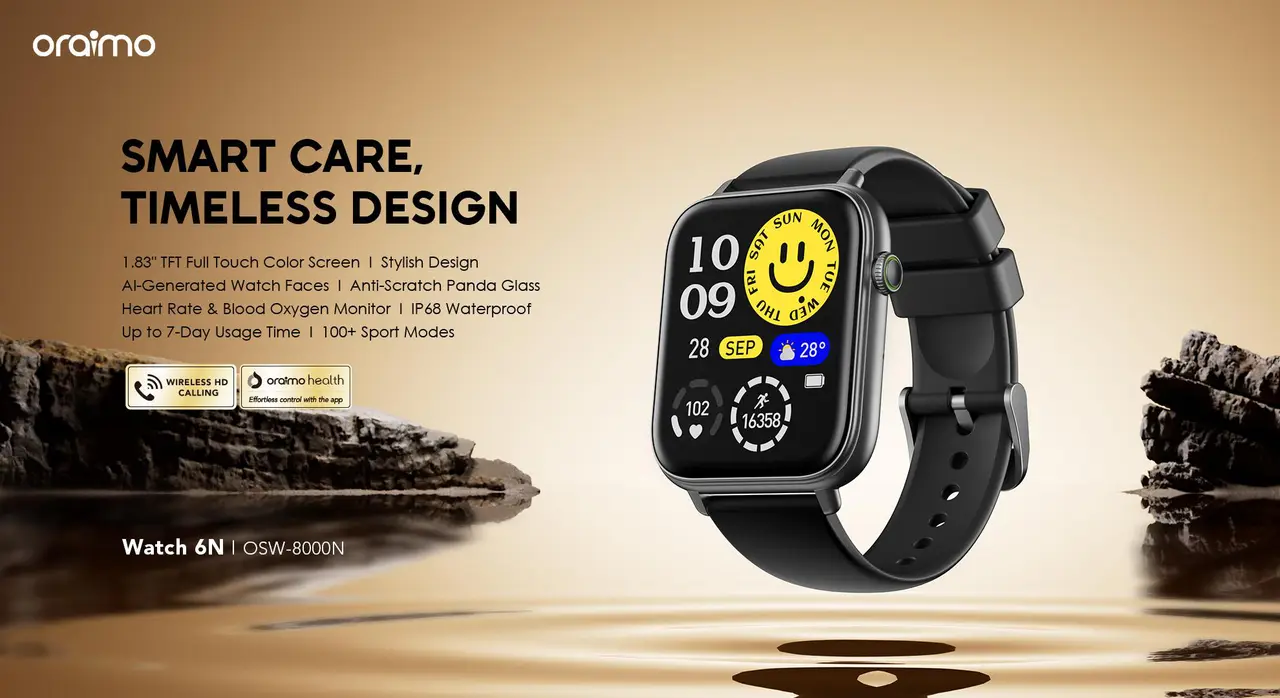
Bluetooth calling is available on most current models, including the Watch 6N, Watch Nova 2 Air, Watch Nova 2 Lite and Watch Muse 2.
Troubleshooting: when the oraimo watch will not connect
| Problem | What to try |
|---|---|
| The app cannot find the watch | Keep the phone close, check Bluetooth is on and the watch is switched on and in pairing mode. If it was paired to another phone, reset the watch and try again. |
| Pairing starts, then fails | Update oraimo Health to the latest version, allow Bluetooth permission for the app, and turn the phone's Bluetooth off and on again. |
| It connected before but will not reconnect | Remove (unpair) the watch from the phone's Bluetooth list, reset the watch, restart the phone, then pair again from inside the app. |
| Notifications stopped | Check that the app still has notification access, that message sync is on in the app, and that Do Not Disturb is off on the watch. |
| Keeps disconnecting on Android | In your phone's battery settings, exclude oraimo Health from battery optimisation or background restrictions. The exact menu differs by brand (Samsung, Xiaomi, TECNO, Infinix and others). If you use a security or cleaner app, add oraimo Health to its trusted list. |
| Calls ring on the phone, not the watch | Make sure the second (calling) Bluetooth connection is paired and connected, and that call sync is enabled in the app. |
| Watch face or update will not install | Charge above 30% for watch faces and to at least 40% for firmware updates, and keep the app open nearby. |
Some App Store reviewers also mention step data not syncing. If that happens, open the app with the watch nearby to trigger a sync, check the app is up to date, and re-pair if it continues.
Switching phones or giving the watch as a gift
Before you hand over a watch or move to a new phone, unbind it in the oraimo Health app on the old phone, remove it from that phone's Bluetooth list, and reset the watch. That clears the link so the new phone can find it. Then follow the steps above from the language selection onwards.
Keeping your watch charged and connected
A few habits keep the connection stable:
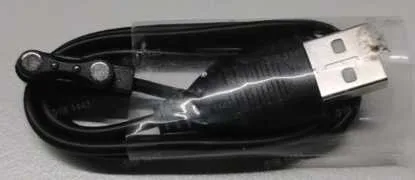
- Charge the watch with its own magnetic cable and keep the charging contacts clean and dry, as oraimo advises. If you lose the cable, oraimo also sells a separate Watch Charging Cable CW-01 with a USB-A plug and magnetic pins; check the pin layout matches your watch before buying.
- Leave Bluetooth on and do not let battery-saving modes close the app.
- In summer, do not leave the watch charging or sitting in a hot car. Heat speeds up battery wear, and a closed car in the sun gets far hotter than any watch is designed for.
For a realistic picture of what the heart rate, SpO2 and sleep data in the app can tell you, read how accurate smart watch health features are. You can browse the full range in our smart watches category.
How to buy in the UAE
We stock oraimo watches and accessories at our store in Al Murar, Deira, Dubai, on 8th Street near Gold Souq metro station, and deliver across the UAE. Order or ask a question on WhatsApp at +971 55 710 0340, and message us for today's price. As an authorized oraimo distributor we sell only 100% original products, each with a 1-year oraimo warranty and replacement as per oraimo's policy; see our warranty page for details. Opening hours are Monday to Thursday and Saturday 10:00 to 21:30, Friday 15:00 to 21:30, closed Sunday. Directions are on our contact page.